# How to Create Signature in Outlook
## How to Create Signature in Outlook 2010, 2016, and 2019
1. **Open the Outlook app**.
2. **Click on File in the Outlook menu bar**.
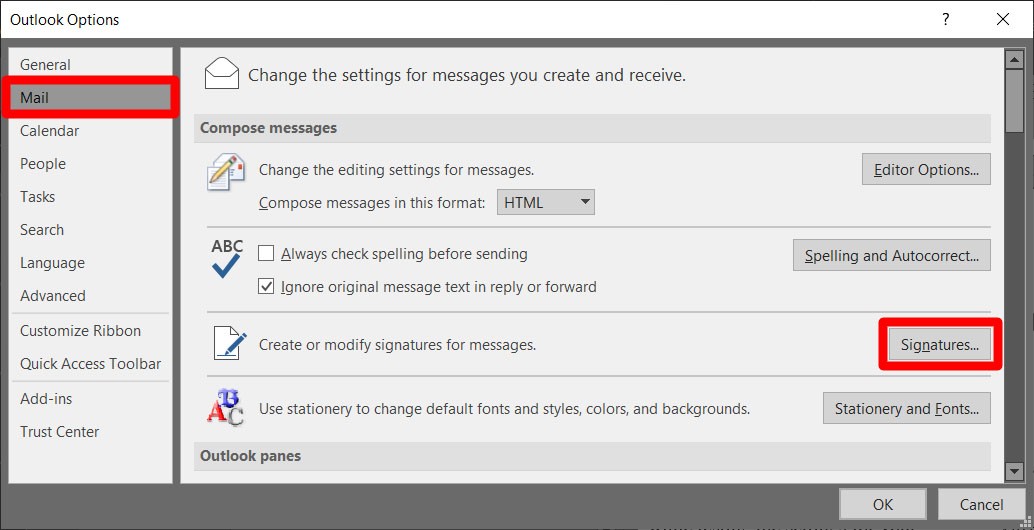
4. **Click on Mail in the Outlook Options dialog box**.
5. **Then click on Signatures**. This will cause the Signatures and Stationery menu to appear.
Note: Mobile signatures are text-only and do not give you the option to format text nor insert hyperlinks or images.
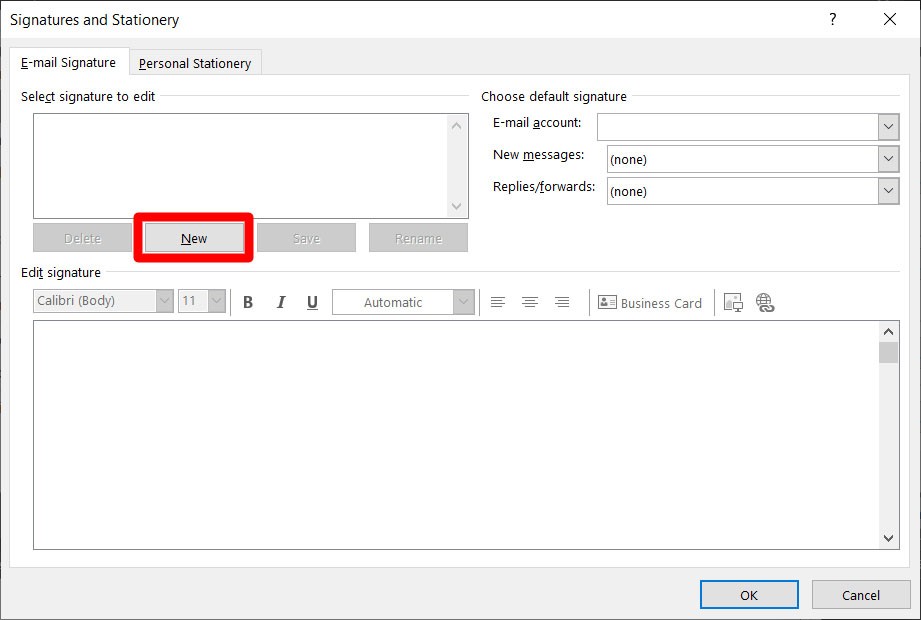
6. **In the Email Signature tab, click on New**.
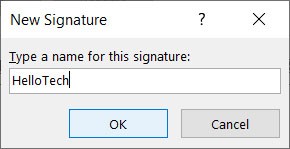
7. **Type in a name for your signature in the pop-up box, and click OK.**
8. **Type your signature in the Edit Signature box**. This is where you put your name, title, company, contact number, and email address, or anything that you want to add to your signature.
Then you can use the standard editing options in the Edit Signature box to format your signature.
- You can choose a font type, text size, text effects, text color, and text alignment.
- You can insert a company logo, social media buttons, or other images by clicking on the Image icon. This will let you import a photo from your computer or hard drive.
- You can insert a link by clicking on the Hyperlink icon (the one that looks like a globe with a chain).
- You can insert a business card that you’ve set up in Outlook contacts by clicking on the Business Card icon.
- In the Email Account dropdown, choose which email account you would like to associate your signature with.
- In the New Messages dropdown, you can choose which email signature to attach to all new messages. Outlook will then automatically add the selected signature every time you create a new message.
- In the Replies/Forwards dropdown, you can also choose which email signature to attach to emails that you reply to or forward to others.
9. **Click on OK when you’re done**.
You can then see your signature by opening a new email. If you want to insert it manually, go to Insert > Signature and choose which Signature you would like to add.