# How to Set Up Out of Office Replies in the Microsoft Outlook Web Version
If you’re using the web version of Outlook, you can set up out of office replies by going to *Settings > View all Outlook settings > Mail > Automatic replies.* Then turn on automatic replies, write your message, and click *Save*.
1. **Go to your Outlook page.** You can get there quickly by clicking this [link](https://outlook.live.com/mail/0/inbox), or going to any web browser and typing outlook.live.com into the address bar.
2. **Then sign in to your Outlook account if prompted.**
3. **Next, click the *Settings* icon.** This is the cog icon you can find on the top-right corner of the page.
4. **Then select *View all Outlook* *settings*.** You will see this at the bottom of the right sidebar. The *Settings* window will then appear. 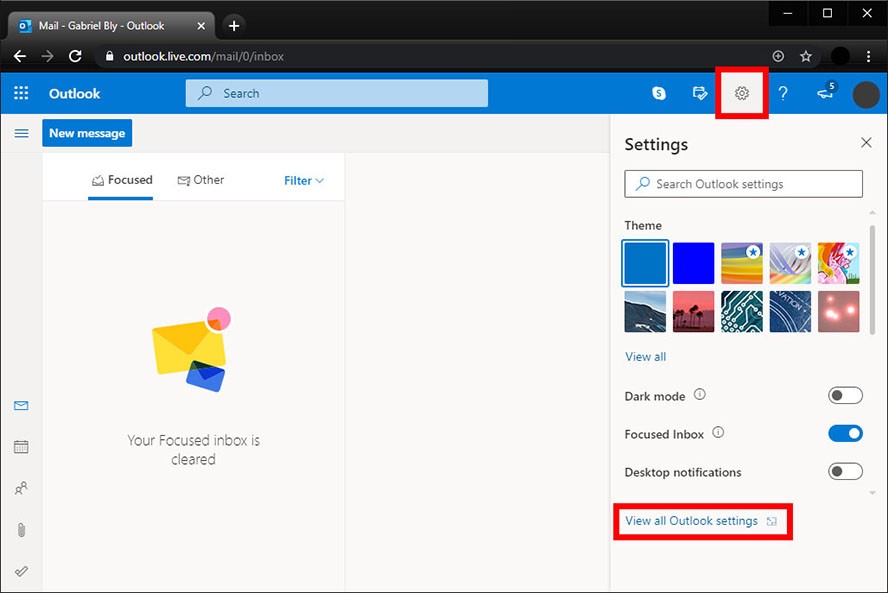
5. **Select the *Mail* tab and then click *Automatic replies*.**
6. **Click *Turn on automatic replies*.** You can then set your automatic reply dates by ticking the “Send replies only during a time period” box. You can skip this step if you want to manually turn off automatic replies when you get back to the office, like when you’re not sure when you’ll be back. Otherwise, this option is much more convenient.
7. **Type in your out of office message.** This will be the automatic response sent to people from your company who email you while you’re away.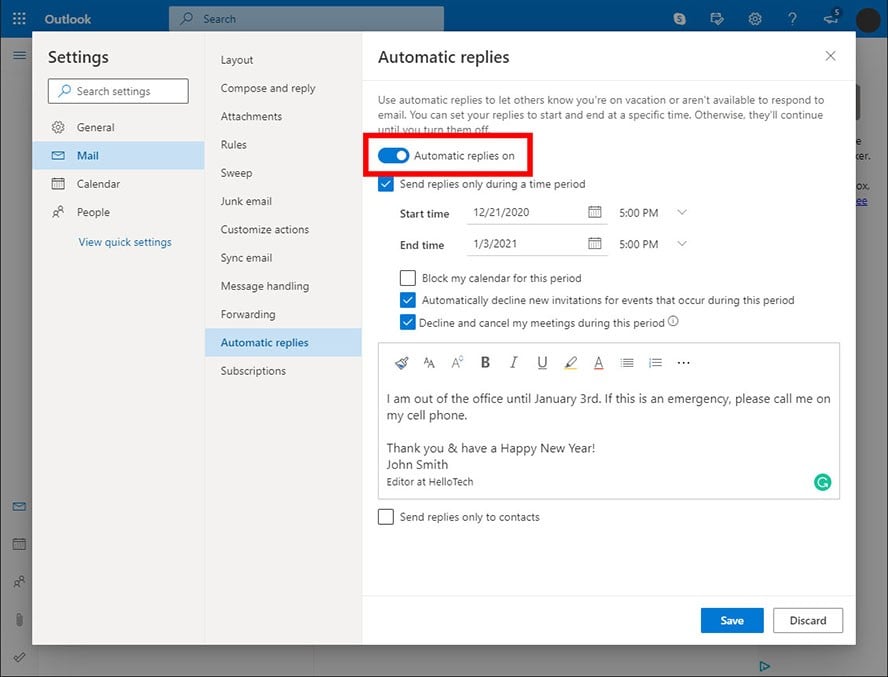Note: Outlook does not attach your signature when it sends automatic replies. If you have a signature, you might want to paste it below your message. If you don’t have one, learn how to add an email signature in Outlook.
8. **Finally, click *Save*.**