# Change Default Sound Input Device from Settings

This option is only available starting with [**Windows 10 build 17035**](https://www.tenforums.com/windows-10-news/97563-announcing-windows-10-insider-fast-skip-ahead-build-17035-pc.html).

<div id="bkmrk-1%C2%A0open%C2%A0settings%2C-and"><div>  
<span class="bbnum">1</span> Open [**Settings**](https://www.tenforums.com/tutorials/3326-open-settings-windows-10-a.html), and click/tap on the **System** icon.  
  
<span class="bbnum">2</span> Click/tap on **Sound** on the left side, and **Choose your input device** you want from the drop menu on the right side. (see screenshot below)  
  
</div></div>You will not be able to choose if you do not have more than one input device connected.

<div id="bkmrk-3%C2%A0when-finished%2C-you">  
<span class="bbnum">3</span> When finished, you can close Settings if you like.  
  
![Change Default Sound Input Device in Windows 10-sound_input_settings.jpg](https://www.tenforums.com/attachments/tutorials/190657d1527701805-change-default-sound-input-device-windows-10-a-sound_input_settings.jpg "Change Default Sound Input Device in Windows 10-sound_input_settings.jpg")</div><div id="bkmrk-option-two"><div><div><span class="bbopt2">OPTION TWO</span></div></div></div>## Change Default Sound Input Device from Sound Control Panel

<div id="bkmrk-1%C2%A0open-the%C2%A0control-p"><div>  
<span class="bbnum">1</span> Open the [**Control Panel (icons view)**](https://www.tenforums.com/tutorials/2691-open-control-panel-windows-10-a.html), and click/tap on the **Sound** icon.  
  
</div></div>If you like, you can open Run (Win+R), copy and paste the command below into Run, and click/tap on **OK** to directly open "Recording" devices in the Sound panel.\[/I\]  
  
`rundll32.exe shell32.dll,Control_RunDLL mmsys.cpl,,1`

<div id="bkmrk-2%C2%A0click%2Ftap-on-the%C2%A0r">  
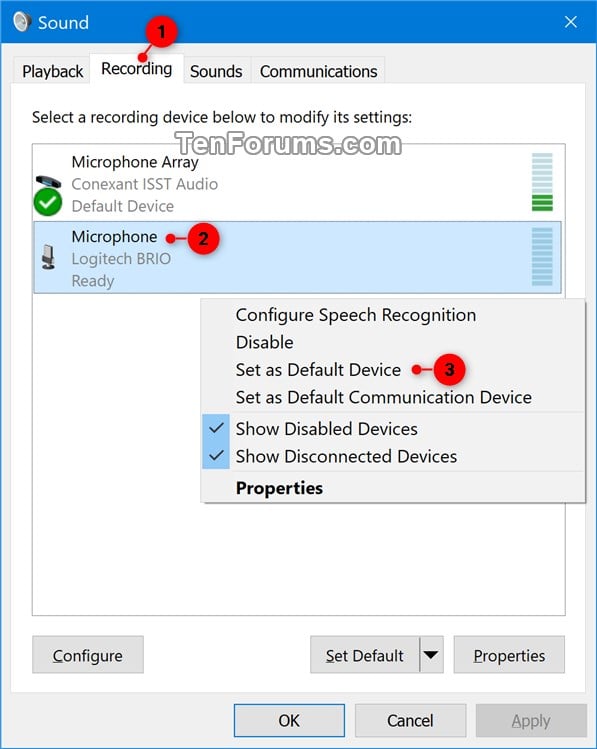
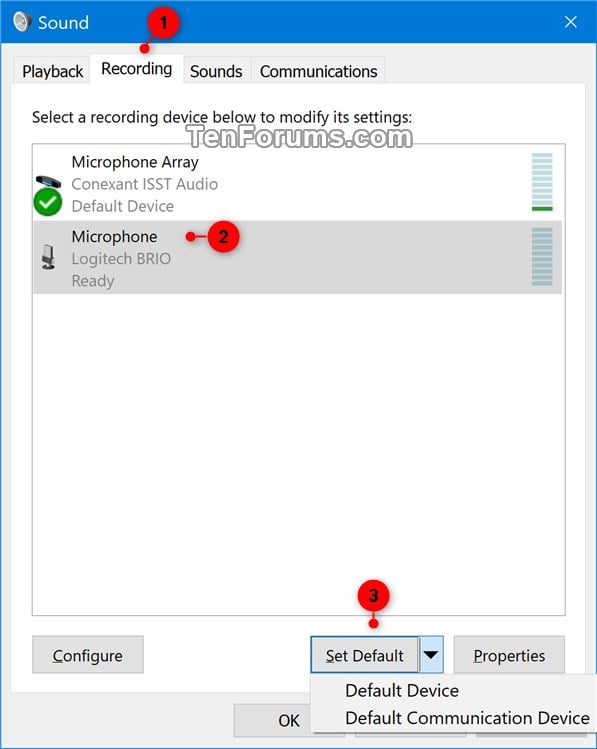
<span class="bbnum">2</span> Click/tap on the **Recording** tab, and perform one of the actions below you want to use to set the default input (recording) device. (see screenshots below)  
  
- Right click or press and hold on the recording device, and click/tap on **Set a Default Device**.
- Select a recording device, and either:  
    
    - Click/tap on **Set Default** to set for both "Default Device" and "Default Communication Device".
    - Click/tap on the drop menu arrow to the right of **Set Default**, and click/tap on **Default Device**.
    - Click/tap on the drop menu arrow to the right of **Set Default**, and click/tap on **Default Communication Device**. This will not be set as the "Default Device"
  
<div></div><div>![Change Default Sound Input Device in Windows 10-sound_input-1.jpg](https://www.tenforums.com/attachments/tutorials/190658d1527701805-change-default-sound-input-device-windows-10-a-sound_input-1.jpg "Change Default Sound Input Device in Windows 10-sound_input-1.jpg") </div><div>![Change Default Sound Input Device in Windows 10-sound_input-2.jpg](https://www.tenforums.com/attachments/tutorials/190659d1527701805-change-default-sound-input-device-windows-10-a-sound_input-2.jpg "Change Default Sound Input Device in Windows 10-sound_input-2.jpg")</div><div></div>  
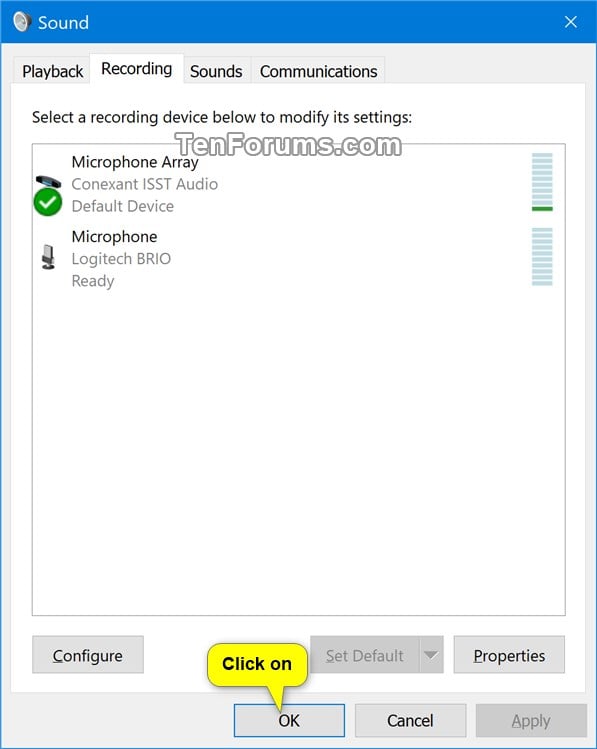
<span class="bbnum">3</span> Click/tap on **OK** when finished. (see screenshot below) <div>  
![Change Default Sound Input Device in Windows 10-sound_input-3.jpg](https://www.tenforums.com/attachments/tutorials/190660d1527701805-change-default-sound-input-device-windows-10-a-sound_input-3.jpg "Change Default Sound Input Device in Windows 10-sound_input-3.jpg")</div></div>  
  
That's it,