# Collecting System Specifications in Windows

<div id="bkmrk-option-one"><div><div><span class="bbopt2">OPTION ONE</span></div></div></div>## Using the System Information (msinfo32) within Windows

<div id="bkmrk-%C2%A0%C2%A0-note-to-view-the-"><div>![Note](https://www.tenforums.com/images/notesmall10.png "Note") Note</div><div>To view the entirety of the msinfo32 command, view the [Microsoft](https://www.microsoft.com/en-us/store/b/home) TechNet documentation here: [Microsoft TechNet Msinfo32](https://technet.microsoft.com/en-us/library/cc731397%28v=ws.11%29.aspx?f=255&MSPPError=-2147217396)</div></div><div id="bkmrk-1.%C2%A0press-the%C2%A0windows">  
**1.** Press the **Windows + R** keys at the same time to open the Run dialog box.  
  
**2.** In the popup box, type **msinfo32** and select **Ok** or hit enter on the keyboard. <div>  
![Collecting System Specifications in Windows-msinfo321.png](https://www.tenforums.com/attachments/tutorials/164576d1511060431-collecting-system-specifications-windows-msinfo321.png "Collecting System Specifications in Windows-msinfo321.png")  
<div><div></div><div>![Note](https://www.tenforums.com/images/notesmall10.png "Note") Note</div><div>Windows should now be displaying the System Information for this system. The left hand pane contains categories that will display additional information about the current system.</div><div></div></div>[](https://www.tenforums.com/attachments/tutorials/164577d1511060452-collecting-system-specifications-windows-msinfo322.png)</div><div>[![Collecting System Specifications in Windows-msinfo322.png](https://www.tenforums.com/attachments/tutorials/164577d1511060452t-collecting-system-specifications-windows-msinfo322.png "Collecting System Specifications in Windows-msinfo322.png")](https://www.tenforums.com/attachments/tutorials/164577d1511060452-collecting-system-specifications-windows-msinfo322.png)</div>  
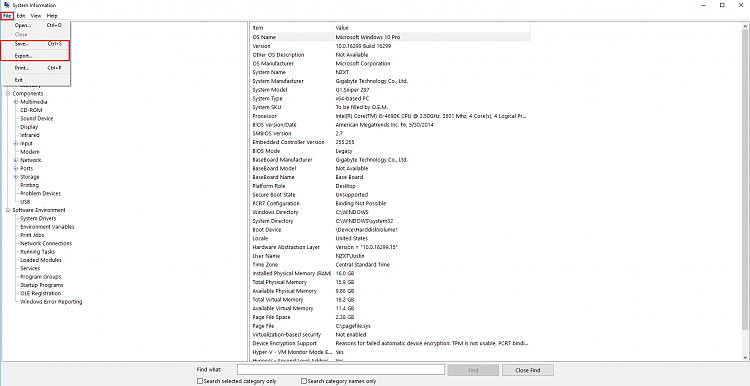
**3.** To save this information, select the **File** option followed by the **Save** option. <div><div>![Tip](https://www.tenforums.com/images/tipsmall.png "Tip") Tip -You can also choose to **Export** from this File menu to generate a text document instead.</div><div></div></div><div>[![Collecting System Specifications in Windows-msinfo323.png](https://www.tenforums.com/attachments/tutorials/164578d1511060464t-collecting-system-specifications-windows-msinfo323.png "Collecting System Specifications in Windows-msinfo323.png")](https://www.tenforums.com/attachments/tutorials/164578d1511060464-collecting-system-specifications-windows-msinfo323.png)</div>  
**4.** When prompted for a save location, choose an appropriate save location.</div><div id="bkmrk-option-two"><div><div><span class="bbopt2">OPTION TWO</span></div></div></div>## Using the DirectX Diagnostic Tool

<div id="bkmrk-1.-press-the%C2%A0windows">  
1. Press the **Windows + R** keys at the same time to open the Run dialog box.  
  
2. In the popup box, type **dxdiag** and select **Ok** or hit enter on the keyboard. If prompted about digital signatures, select **Yes** </div><div id="bkmrk-%C2%A0%C2%A0-note-windows-shou">![Collecting System Specifications in Windows-dxdiag1.png](https://www.tenforums.com/attachments/tutorials/164579d1511060670-collecting-system-specifications-windows-dxdiag1.png "Collecting System Specifications in Windows-dxdiag1.png")  
<div><div></div><div>![Note](https://www.tenforums.com/images/notesmall10.png "Note") Note</div><div>Windows should now be displaying the DirectX Diagnostic Tool for this system. Tabs located at the top of the window categorize the information.</div><div></div></div>![Collecting System Specifications in Windows-dxdiag2.png](https://www.tenforums.com/attachments/tutorials/164580d1511060678-collecting-system-specifications-windows-dxdiag2.png "Collecting System Specifications in Windows-dxdiag2.png")</div><div id="bkmrk-3.-to-save-this-info">  
3. To save this information, click the **Save All Information** button towards the bottom of the window.</div><div id="bkmrk--0"></div><div id="bkmrk--1">![Collecting System Specifications in Windows-dxdiag3.png](https://www.tenforums.com/attachments/tutorials/164581d1511060718-collecting-system-specifications-windows-dxdiag3.png "Collecting System Specifications in Windows-dxdiag3.png")</div><div id="bkmrk-4.-when-prompted-for">  
4. When prompted for a save location, choose an appropriate save location.</div><div id="bkmrk-option-three"><div><div><span class="bbopt2">OPTION THREE</span></div></div></div>## Generating a Speccy Report

<div id="bkmrk-%C2%A0%C2%A0-information-specc"><div><div>![information](https://www.tenforums.com/images/infosmall10.png "information") Information</div><div>Speccy is a third-party application that is managed by Piriform; an Avast company. The application is a user friendly, yet powerful hardware information collector that has easy exporting options for forums and to share hardware information.</div></div><div><div></div><div>![warning](https://www.tenforums.com/images/warnsmall10.png "warning") Warning</div><div>Speccy is a free application and is bundled with, what can be considered, computer bloatware. During the installation of Speccy, ensure to untick and/or decline to any unwanted software.</div></div>  
1. Download the free version of Speccy using the [official download page](https://www.piriform.com/speccy/download).  
  
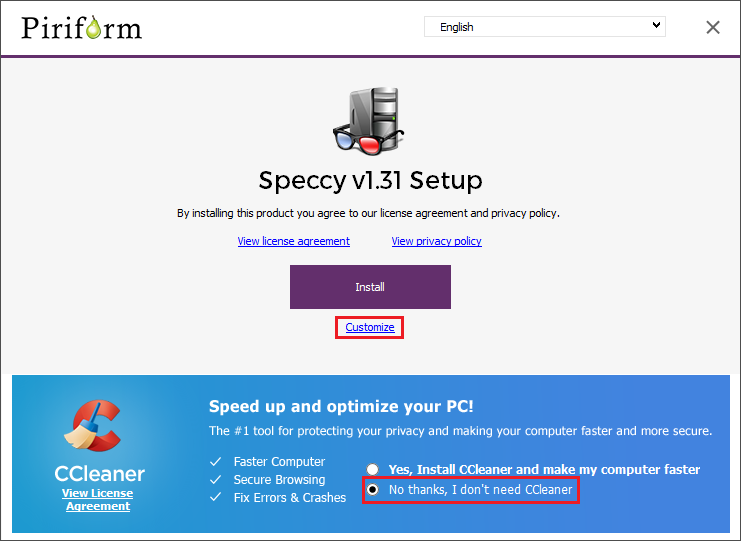
2. Once downloaded, open the installer and select to **not** install CCleaner at the bottom. Next, select the **Customize** option underneath the Install button.</div><div id="bkmrk--2"></div><div id="bkmrk--3">![Collecting System Specifications in Windows-speccy1.png](https://www.tenforums.com/attachments/tutorials/164582d1511060846-collecting-system-specifications-windows-speccy1.png "Collecting System Specifications in Windows-speccy1.png")</div><div id="bkmrk-3.-opt-in-or-out-of-">  
3. Opt in or out of any options you choose to select for your system. Then, select Install.</div><div id="bkmrk--4"></div><div id="bkmrk--5">![Collecting System Specifications in Windows-speccy2.png](https://www.tenforums.com/attachments/tutorials/164583d1511060854-collecting-system-specifications-windows-speccy2.png "Collecting System Specifications in Windows-speccy2.png")</div><div id="bkmrk-4.-press-the%C2%A0run-spe">  
4. Press the **Run Speccy** button at the end of installation.</div><div id="bkmrk--6"></div><div id="bkmrk--7">![Collecting System Specifications in Windows-speccy3.png](https://www.tenforums.com/attachments/tutorials/164584d1511060866-collecting-system-specifications-windows-speccy3.png "Collecting System Specifications in Windows-speccy3.png")</div><div id="bkmrk--8"></div><div id="bkmrk-5.-after-analyzing-y">5. After analyzing your system, Speccy will generate a hardware configuration report within the application.</div><div id="bkmrk--9"></div><div id="bkmrk--10">[![Collecting System Specifications in Windows-speccy4.png](https://www.tenforums.com/attachments/tutorials/164585d1511060876t-collecting-system-specifications-windows-speccy4.png "Collecting System Specifications in Windows-speccy4.png")](https://www.tenforums.com/attachments/tutorials/164585d1511060876-collecting-system-specifications-windows-speccy4.png)</div><div id="bkmrk-6.-to-share-the-repo">  
6. To share the report, select **File** then press **Publish Snapshot**. When prompted to create a URL, select **Yes**.</div><div id="bkmrk--11"></div><div id="bkmrk--12">![Collecting System Specifications in Windows-speccy5.png](https://www.tenforums.com/attachments/tutorials/164586d1511060887-collecting-system-specifications-windows-speccy5.png "Collecting System Specifications in Windows-speccy5.png")</div><div id="bkmrk-option-four"><div><div><span class="bbopt2">OPTION FOUR</span></div></div></div>## Using the Device Management Tool

<div id="bkmrk-%C2%A0%C2%A0-information-to-co"><div><div>![information](https://www.tenforums.com/images/infosmall10.png "information") Information</div><div>To communicate to Windows, devices uses a device driver. To learn more about what a Windows driver is, visit this page [here](https://en.wikipedia.org/wiki/Device_driver).  
  
Since a driver is needed for ideal operation of computer hardware, you can detect and see what is currently communicating with the system through this driver.</div></div><div><div></div><div>![warning](https://www.tenforums.com/images/warnsmall10.png "warning") Warning</div><div>If your system is using generic Windows drivers for your computer hardware, the readings from this option may not be accurate. Make sure that all drivers for the system are fully updated before checking them.</div></div>  
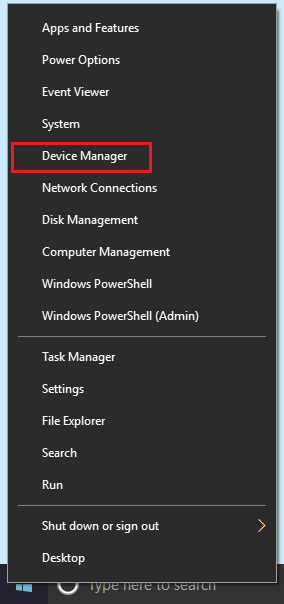
1. **Right click** the **Windows Start Menu** icon and select **Device Manager**.</div><div id="bkmrk--13">![Collecting System Specifications in Windows-devicemanager1.png](https://www.tenforums.com/attachments/tutorials/164588d1511061880-collecting-system-specifications-windows-devicemanager1.png "Collecting System Specifications in Windows-devicemanager1.png")</div><div id="bkmrk-%C2%A0%C2%A0-information-each-"><div><div></div><div>![information](https://www.tenforums.com/images/infosmall10.png "information") Information</div><div>Each device connected to the system is categorized by type. You can expand each type by pressing the gray right arrow next to</div><div>each category.</div><div></div></div>[![Collecting System Specifications in Windows-devicemanager2.png](https://www.tenforums.com/attachments/tutorials/164589d1511061893t-collecting-system-specifications-windows-devicemanager2.png "Collecting System Specifications in Windows-devicemanager2.png")](https://www.tenforums.com/attachments/tutorials/164589d1511061893-collecting-system-specifications-windows-devicemanager2.png)</div><div id="bkmrk-2.-to-view-hardware%2C">  
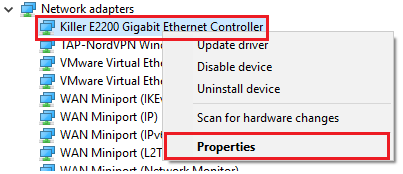
2. To view hardware, expand the category and **right click** on the device. Select to view its **Properties**.</div><div id="bkmrk--14"></div><div id="bkmrk--15">![Collecting System Specifications in Windows-devicemanager4.png](https://www.tenforums.com/attachments/tutorials/164590d1511061910-collecting-system-specifications-windows-devicemanager4.png "Collecting System Specifications in Windows-devicemanager4.png")</div><div id="bkmrk-3.-in-the-tab-menu-a">  
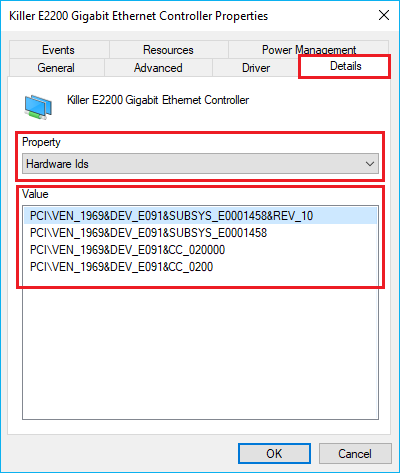
3. In the tab menu at the top, choose **Details** and change the **Property** to **Hardware Ids**. The information here will be the hardware ID that is being sent from the device.</div><div id="bkmrk--16"></div><div id="bkmrk--17">![Collecting System Specifications in Windows-devicemanager3.png](https://www.tenforums.com/attachments/tutorials/164591d1511061920-collecting-system-specifications-windows-devicemanager3.png "Collecting System Specifications in Windows-devicemanager3.png")</div>