# How to Change Computer Sleep

## Change Computer Sleep After Time in Settings

This will change the sleep after settings in your currently selected [**default power plan**](https://www.tenforums.com/tutorials/21434-choose-power-plan-windows-10-a.html).

<div id="bkmrk-1%C2%A0open%C2%A0settings%2C-and"><div>  
<span class="bbnum">1</span> Open **[Settings](https://www.tenforums.com/tutorials/3326-open-settings-windows-10-a.html)**, and click/tap on the **System** icon.  
  
<span class="bbnum">2</span> Click/tap on **Power &amp; sleep** on the left side, and select the **Sleep** time you want in the **On battery power, PC goes to sleep** and **When plugged, PC goes to sleep** drop menus on the right side. (see screenshot below)  
  
</div></div>If you PC doesn't have battery power, then you will only see one option.

[![image-1662494915422.png](https://docs.gamma.tech/uploads/images/gallery/2022-09/scaled-1680-/CACpbrzu9W0q9ksM-image-1662494915422.png)](https://docs.gamma.tech/uploads/images/gallery/2022-09/CACpbrzu9W0q9ksM-image-1662494915422.png)
<div id="bkmrk-3%C2%A0when-finished%2C-you"><div></div>  
<span class="bbnum">3</span> When finished, you can close Settings if you like.</div><div id="bkmrk-option-two"><div><div><span class="bbopt2">OPTION TWO</span></div></div></div>## Change Computer Sleep After Time in Power Plan Settings

This will change the sleep after settings in your currently selected [**default power plan**](https://www.tenforums.com/tutorials/21434-choose-power-plan-windows-10-a.html).

<div id="bkmrk-1%C2%A0open-the%C2%A0control-p"><div>  
<span class="bbnum">1</span> Open the [**Control Panel (icons view)**](https://www.tenforums.com/tutorials/2691-open-control-panel-windows-10-a.html), and click/tap on the **Power Options** icon.  
  
<span class="bbnum">2</span> Click/tap on the **Change when the computer sleeps** link on the left side. (see screenshot below) <div></div></div></div>[![image-1662494930928.png](https://docs.gamma.tech/uploads/images/gallery/2022-09/scaled-1680-/Zw8XN84KnWUB3Pdj-image-1662494930928.png)](https://docs.gamma.tech/uploads/images/gallery/2022-09/Zw8XN84KnWUB3Pdj-image-1662494930928.png)

<div id="bkmrk-3%C2%A0select-the%C2%A0put-the"><div></div>  
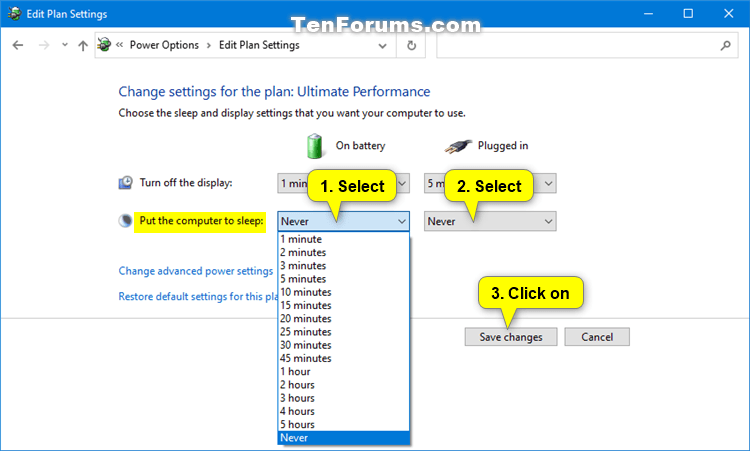
<span class="bbnum">3</span> Select the **Put the computer to sleep** times you want in the **On battery** and **Plugged in** drop menus, and click/tap on **Save changes**. (see screenshot below)  
  
</div>If you PC doesn't have battery power, then you will only see one option.

[![image-1662494939587.png](https://docs.gamma.tech/uploads/images/gallery/2022-09/scaled-1680-/s6dDNsJ9bBt6iKY8-image-1662494939587.png)](https://docs.gamma.tech/uploads/images/gallery/2022-09/s6dDNsJ9bBt6iKY8-image-1662494939587.png)

<div id="bkmrk-4%C2%A0you-can-now-close-"><div></div>  
<span class="bbnum">4</span> You can now close the **Edit Plan Settings** window if you like.</div><div id="bkmrk-option-three"><div><div><span class="bbopt2">OPTION THREE</span></div></div></div>## Change Computer Sleep After Time in Advanced Power Plan Settings

<div id="bkmrk-1%C2%A0open-the%C2%A0control-p-0"><div>  
<span class="bbnum">1</span> Open the [**Control Panel (icons view)**](https://www.tenforums.com/tutorials/2691-open-control-panel-windows-10-a.html), and click/tap on the **Power Options** icon.  
  
<span class="bbnum">2</span> Click/tap on the **Change plan settings** link of the [**power plan**](https://www.tenforums.com/tutorials/21434-choose-power-plan-windows-10-a.html) (ex: "Ultimate Performance") you want to apply this to. (see screenshot below) <div></div></div></div>[![image-1662494968883.png](https://docs.gamma.tech/uploads/images/gallery/2022-09/scaled-1680-/eq9pxYUV5Fl6T7jf-image-1662494968883.png)](https://docs.gamma.tech/uploads/images/gallery/2022-09/eq9pxYUV5Fl6T7jf-image-1662494968883.png)

<div id="bkmrk-3%C2%A0click%2Ftap-on-the%C2%A0c"><div><div></div>  
<span class="bbnum">3</span> Click/tap on the **Change advanced power settings** link. (see screenshot below) <div></div></div></div>[![image-1662494977086.png](https://docs.gamma.tech/uploads/images/gallery/2022-09/scaled-1680-/ze7WbK2tsZPdYr6B-image-1662494977086.png)](https://docs.gamma.tech/uploads/images/gallery/2022-09/ze7WbK2tsZPdYr6B-image-1662494977086.png)

<div id="bkmrk-4%C2%A0scroll-down-and-ex"><div></div>  
<span class="bbnum">4</span> Scroll down and expand **Sleep** and **Sleep after**. Select the **On battery** and **Plugged in** times you want, and click/tap on **OK**. (see screenshot below)  
  
</div>If you PC doesn't have battery power, then you will only see one option.

[![image-1662494987044.png](https://docs.gamma.tech/uploads/images/gallery/2022-09/scaled-1680-/CVDSnFeIZpAYkRdr-image-1662494987044.png)](https://docs.gamma.tech/uploads/images/gallery/2022-09/CVDSnFeIZpAYkRdr-image-1662494987044.png)

<div id="bkmrk-5%C2%A0you-can-now-close-"><div></div>  
<span class="bbnum">5</span> You can now close the **Edit Plan Settings** window if you like.</div><div id="bkmrk-option-four"><div><div><span class="bbopt2">OPTION FOUR</span></div></div></div>## Change Computer Sleep After Time in Command Prompt

This will change the sleep after settings in your currently selected [**default power plan**](https://www.tenforums.com/tutorials/21434-choose-power-plan-windows-10-a.html).

<div id="bkmrk-1%C2%A0open-a%C2%A0command-pro"><div>  
<span class="bbnum">1</span> Open a [**command prompt**](https://www.tenforums.com/tutorials/3288-open-command-prompt-windows-10-a.html).  
  
<span class="bbnum">2</span> Type the command(s) below you want to use into the command prompt, and press <kbd class="bbkey1">Enter</kbd>. (see screenshot below) <div>  
(On battery)  
`powercfg -change -standby-timeout-dc <strong><span style="color: #ff0000;"><minutes></span></strong>`  
  
OR  
  
`powercfg /SETDCVALUEINDEX SCHEME_CURRENT 238C9FA8-0AAD-41ED-83F4-97BE242C8F20 29f6c1db-86da-48c5-9fdb-f2b67b1f44da <strong><span style="color: #ff0000;"><seconds></span></strong>`  
  
**AND/OR**  
  
(Plugged in)  
`powercfg -change -standby-timeout-ac <strong><span style="color: #ff0000;"><minutes></span></strong>`  
  
OR  
  
`powercfg /SETACVALUEINDEX SCHEME_CURRENT 238C9FA8-0AAD-41ED-83F4-97BE242C8F20 29f6c1db-86da-48c5-9fdb-f2b67b1f44da <strong><span style="color: #ff0000;"><seconds></span></strong>`  
  
</div></div></div>Substitute **<span style="color: #ff0000;">&lt;minutes&gt;</span>** in the commands above with how many minutes you want for how long your computer is inactive before automatically going to sleep.  
  
Substitute **<span style="color: #ff0000;">&lt;seconds&gt;</span>** in the commands above with how many seconds you want for how long your computer is inactive before automatically going to sleep.  
  
Using 0 (zero) minutes or seconds will be the same as **Never**.

<div id="bkmrk-3%C2%A0when-finished%2C-you-0"><div><div></div>  
<span class="bbnum">3</span> When finished, you can close the command prompt if you like.  
  
</div></div>[![image-1662495346260.png](https://docs.gamma.tech/uploads/images/gallery/2022-09/scaled-1680-/twxWINnquqLBpmJ1-image-1662495346260.png)](https://docs.gamma.tech/uploads/images/gallery/2022-09/twxWINnquqLBpmJ1-image-1662495346260.png)