# How to Open and Use All apps in Windows 10 Start menu

> **All apps** in the Start menu displays an alphabetical list of all your installed Windows apps and desktop apps in Windows 10. Some of these apps are grouped into folders with the folder name in the alphabetical list.  
>   
> Starting with [**Windows 10 Insider Preview Build 14328**](https://www.tenforums.com/windows-10-news/48094-announcing-windows-10-insider-preview-build-14328-pc-mobile.html), Microsoft has brought back the full-screen All Apps list while using [**full screen Start**](https://www.tenforums.com/tutorials/3680-start-full-screen-turn-off-windows-10-a.html).  
>   
> This tutorial will show you how to open and use **All apps** in the Start menu to open apps from in **Windows 10**.

<div id="bkmrk-option-one"><div><div><span class="bbopt2">OPTION ONE</span></div></div></div>## Open All Apps in Start Menu

<div id="bkmrk-1.%C2%A0open-the%C2%A0start-me">  
<span style="font-size: medium;">**1.**</span> Open the **Start menu** ![](https://www.tenforums.com/images/smilies/start.png "Start"), and do [**step 2**](https://www.tenforums.com/tutorials/7008-open-use-all-apps-start-menu-windows-10-a.html#option1s2) or [**step 3**](https://www.tenforums.com/tutorials/7008-open-use-all-apps-start-menu-windows-10-a.html#option1s3) below depending if you have **[full-screen Start](https://www.tenforums.com/tutorials/3680-start-full-screen-turn-off-windows-10-a.html)** turned on or off.  
  
  
<a class="anchor" name="option1s2"></a><div> 2. If Full-screen Start is Turned Off</div><div>  
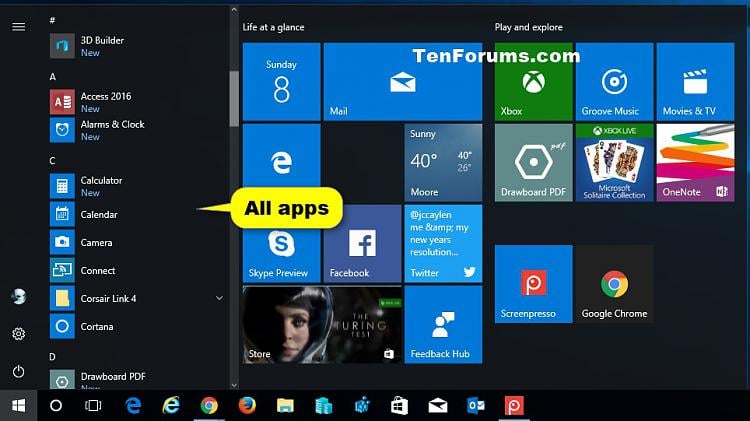
A) All Apps shows by default on the left side of the Start menu. (see screenshot below)  
  
[![Open and Use All apps in Start menu in Windows 10-windows_10_all_apps.jpg](https://www.tenforums.com/attachments/tutorials/116332d1485975592t-open-use-all-apps-start-menu-windows-10-a-windows_10_all_apps.jpg "Open and Use All apps in Start menu in Windows 10-windows_10_all_apps.jpg")](https://www.tenforums.com/attachments/tutorials/116332d1483911187-open-use-all-apps-start-menu-windows-10-a-windows_10_all_apps.jpg)</div>  
<a class="anchor" name="option1s3"></a><div> 3. If Full-screen Start is Turned On</div><div>  
A) Click/tap on the **All apps** ![Open and Use All apps in Start menu in Windows 10-all_apps.png](https://www.tenforums.com/attachments/tutorials/116330d1485975592-open-use-all-apps-start-menu-windows-10-a-all_apps.png "Open and Use All apps in Start menu in Windows 10-all_apps.png") button towards the top left corner on Start. (see screenshot below)  
  
[![Open and Use All apps in Start menu in Windows 10-all_apps_full_screen_start.jpg](https://www.tenforums.com/attachments/tutorials/116331d1485975592t-open-use-all-apps-start-menu-windows-10-a-all_apps_full_screen_start.jpg "Open and Use All apps in Start menu in Windows 10-all_apps_full_screen_start.jpg")](https://www.tenforums.com/attachments/tutorials/116331d1483910981-open-use-all-apps-start-menu-windows-10-a-all_apps_full_screen_start.jpg)</div></div>  
  
  
OPTION TWO

## View Apps with Scroll Bar in All Apps

<div id="bkmrk-1.%C2%A0open%C2%A0all-apps%2C-an">  
**<span style="font-size: medium;">1.</span>** Open [**All apps**](https://www.tenforums.com/tutorials/7008-open-use-all-apps-start-menu-windows-10-a.html#option1), and move the **scroll bar** up and down to view all apps. (see screenshot below)  
  
**<span style="font-size: medium;">2.</span>** If you like, click/tap on an app to open it.  
  
![Open and Use All apps in Start menu in Windows 10-scroll_all_apps.jpg](https://www.tenforums.com/attachments/tutorials/21442d1485951952-open-use-all-apps-start-menu-windows-10-a-scroll_all_apps.jpg "Open and Use All apps in Start menu in Windows 10-scroll_all_apps.jpg")</div><div id="bkmrk-option-three"><div><div><span class="bbopt2">OPTION THREE</span></div></div></div>## View Apps by Letters in All Apps

**<span style="font-size: medium;">1.</span>** Open [**All apps**](https://www.tenforums.com/tutorials/7008-open-use-all-apps-start-menu-windows-10-a.html#option1).  
  
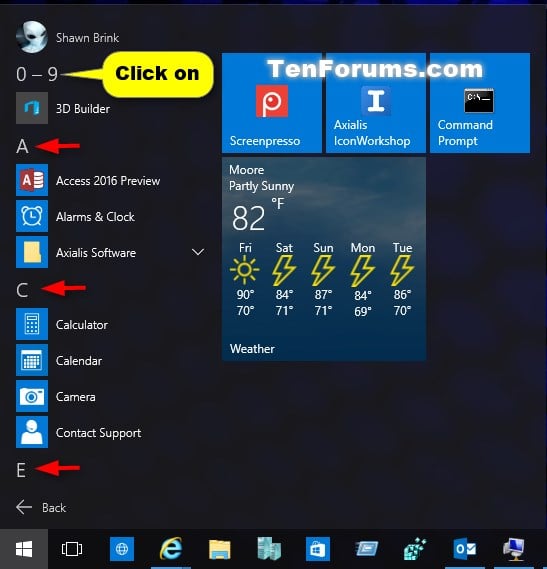
**<span style="font-size: medium;">2.</span>** Click/tap on any **character** or **letter** above the listed apps. (see screenshot below)
<div id="bkmrk-3.%C2%A0click%2Ftap-on-an-a"><div>  
![Open and Use All apps in Start menu in Windows 10-all_apps_open_by_letter-1.jpg](https://www.tenforums.com/attachments/tutorials/21437d1485951952-open-use-all-apps-start-menu-windows-10-a-all_apps_open_by_letter-1.jpg "Open and Use All apps in Start menu in Windows 10-all_apps_open_by_letter-1.jpg")</div>  
**<span style="font-size: medium;">3.</span>** Click/tap on an available **character** or **letter** to jump to that alphabetical order in All apps. (see screenshot below) <div>  
![Open and Use All apps in Start menu in Windows 10-all_apps_open_by_letter-2.jpg](https://www.tenforums.com/attachments/tutorials/21439d1485951952-open-use-all-apps-start-menu-windows-10-a-all_apps_open_by_letter-2.jpg "Open and Use All apps in Start menu in Windows 10-all_apps_open_by_letter-2.jpg")</div>  
**<span style="font-size: medium;">4.</span>** If you like, click/tap on an app to open it.</div><div id="bkmrk-option-four"><div><div><span class="bbopt2">OPTION FOUR</span></div></div></div>## Expand Open Folders in All Apps

<p class="callout info">A folder in All apps represents a group of shortcuts for a specific installed app or apps included with Windows.  
  
Folder example: Windows Accessories, Windows Administrative Tools, Windows Ease of Access, Windows System</p>

<div id="bkmrk-1.%C2%A0open%C2%A0all-apps.2.%C2%A0-0">  
**<span style="font-size: medium;">1.</span>** Open [**All apps**](https://www.tenforums.com/tutorials/7008-open-use-all-apps-start-menu-windows-10-a.html#option1).  
  
**<span style="font-size: medium;">2.</span>** Click/tap on the folder to toggle to expand or close the folder. (see screenshot below) <div>  
![Open and Use All apps in Start menu in Windows 10-all_apps_expand_open_folders.jpg](https://www.tenforums.com/attachments/tutorials/21436d1485951952-open-use-all-apps-start-menu-windows-10-a-all_apps_expand_open_folders.jpg "Open and Use All apps in Start menu in Windows 10-all_apps_expand_open_folders.jpg")</div>  
**<span style="font-size: medium;">3.</span>** If you like, click/tap on an app or file in the folder to open it.</div>  
OPTION FIVE

## Open Context Menu of App in All Apps

<div id="bkmrk-1.%C2%A0open%C2%A0all-apps.2.%C2%A0-1">  
<span style="font-size: medium;">**1.**</span> Open [**All apps**](https://www.tenforums.com/tutorials/7008-open-use-all-apps-start-menu-windows-10-a.html#option1).  
  
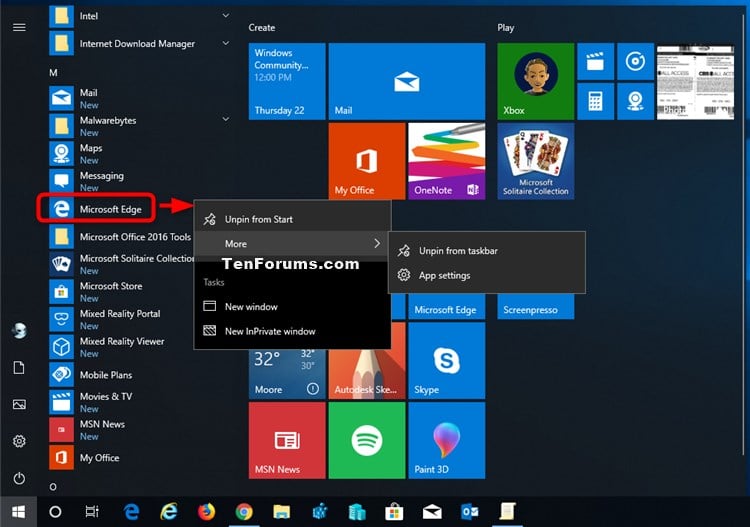
<span style="font-size: medium;">**2.**</span> Right click or press and hold on an app (ex: "Microsoft Edge") listed in All apps, and click/tap on the item you want in its context menu. (see screenshot below)  
  
![Open and Use All apps in Start menu in Windows 10-context_menus_in_start_menu-2.jpg](https://www.tenforums.com/attachments/tutorials/178181d1519327383-open-use-all-apps-start-menu-windows-10-a-context_menus_in_start_menu-2.jpg "Open and Use All apps in Start menu in Windows 10-context_menus_in_start_menu-2.jpg")</div>  
  
That's it,