# How to Open Settings in Windows 10
Most of the settings you'll want to change in Windows 10 are in [**Settings**](https://support.microsoft.com/en-us/windows/find-settings-in-windows-10-6ffbef87-e633-45ac-a1e8-b7a834578ac6). Settings is organized into the separate **System**, **Devices**, **Phone**, **Network & Internet**, **Personalization**, **Apps**, **Accounts**, **Time & language**, **Gaming**, **Ease of Access** (Accessibility), **Search**, **Privacy**, **Update & Security**, and **Mixed Reality** (if available) categories. You can click/tap on a category to view and change more settings for that category.
Starting with [**Windows 10 build 18350**](https://www.tenforums.com/windows-10-news/123760-new-windows-10-insider-preview-fast-skip-build-18305-19h1-dec-19-a.html), [Microsoft](https://www.microsoft.com/en-us/store/b/home) is introducing a new way to help users finish their Windows setup and quickly access some of the most frequently used settings. Inspired by the [Microsoft](https://www.microsoft.com/en-us/store/b/home) account homepage, the Settings home page now has a header at the top allowing you to take quick action for things like signing in and managing your [Microsoft](https://go.skimresources.com/?id=3570X1544160&isjs=1&jv=15.2.1-stackpath&sref=https%3A%2F%2Fwww.tenforums.com%2Ftutorials%2F3326-open-settings-windows-10-a.html&url=https%3A%2F%2Fwww.microsoft.com%2Fen-us%2Fstore%2Fb%2Fhome&xs=2&xtz=300&xuuid=7f8559630de4ecc7bbf6ff5082454bb3&xcreo=300001&xguid=414d252330e0a82747dcfb8ace07e57b&xword=Microsoft) account, making the Windows and Microsoft experience better. It also gives you an easy to glance at system status, such as when updates are available. Some of you may have already seen this in previous builds, but don’t worry if not, we’re continuing to roll this out slowly and you will see it in an upcoming build.
Starting with [**Windows 10 build 21359**](https://www.tenforums.com/windows-10-news/177691-windows-10-insider-preview-dev-build-21359-1-co_release-april-14-a.html), the **Ease of Access** category in Settings has been renamed to **Accessibility**.
This tutorial will show you different ways to open the **Settings** app in **Windows 10**
## Open Settings with Keyboard Shortcut
1 Press the **Win + I** keys.
## Open Settings from Win+X Quick Link Menu
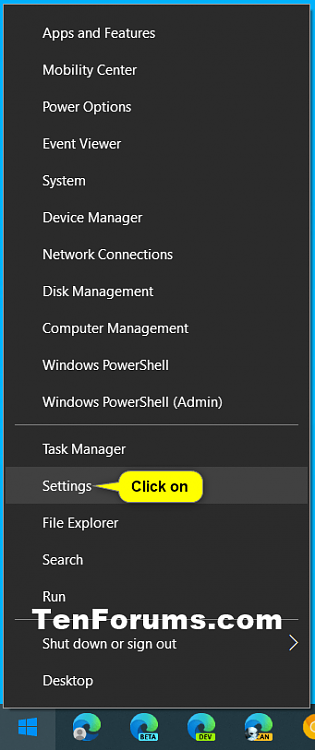
1 Open the **[Win+X Quick Link menu](https://www.tenforums.com/tutorials/1984-open-win-x-quick-link-menu-windows-10-a.html)**, and click/tap on **Settings**. (see screenshot below)
[](https://www.tenforums.com/attachments/tutorials/328078d1618681235-open-settings-windows-10-a-settings_win-x.png)
## Open Settings from Start Menu
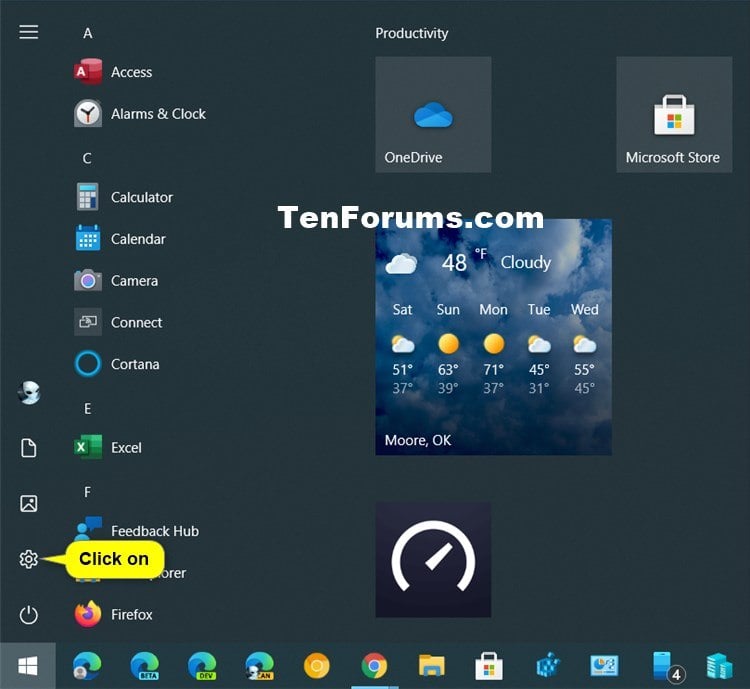
1 Open the **Start menu** .
2 Click/tap on the [**Settings**](https://www.tenforums.com/tutorials/2192-add-remove-folders-start-list-windows-10-a.html) (gear) button on the left side of the Start menu. (see screenshot below)
## Open Settings from Action Center
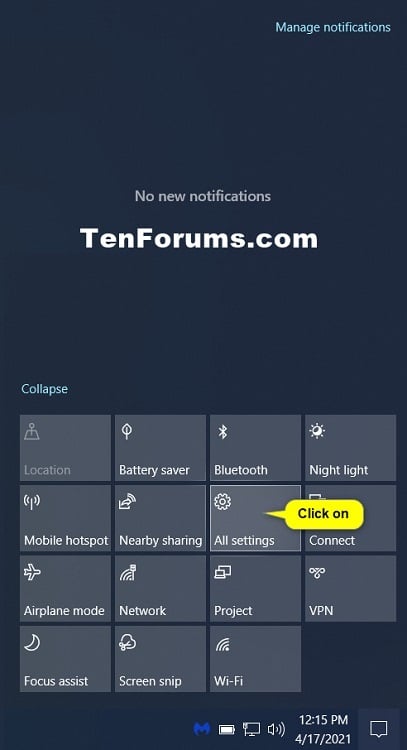
1 Open the [**Action Center**](https://www.tenforums.com/tutorials/2594-open-action-center-windows-10-a.html#option1) (Win+A).
2 Click/tap on the [**All settings**](https://www.tenforums.com/tutorials/3956-add-remove-quick-actions-action-center-windows-10-a.html) quick action button. (see screenshot below)
****
## Open Settings from Search
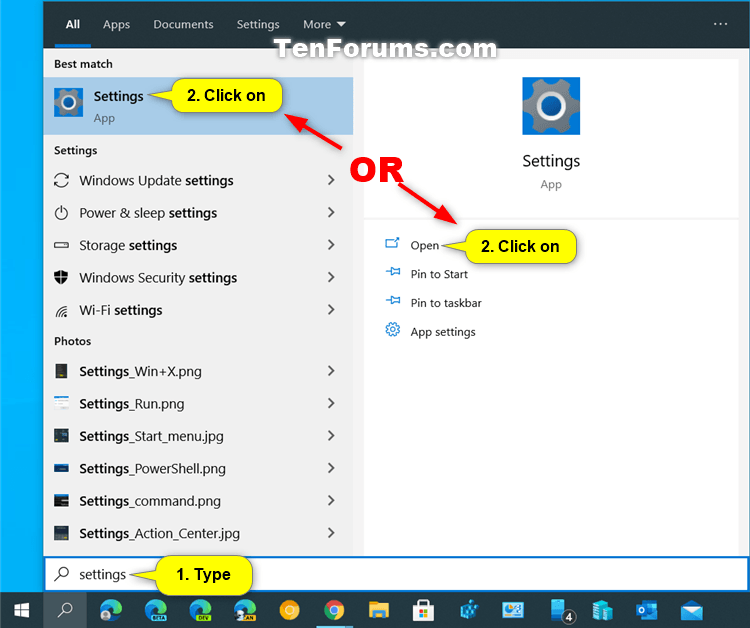
1 Open the [**Search**](https://www.tenforums.com/tutorials/2854-hide-show-search-box-search-icon-taskbar-windows-10-a.html) (Win+S).
2 Type **Settings** into the search box. (see screenshot below)
3 Click/tap on **Settings** in the search results, or click/tap on **Open** if Settings is selected.
## Open Settings from File Explorer
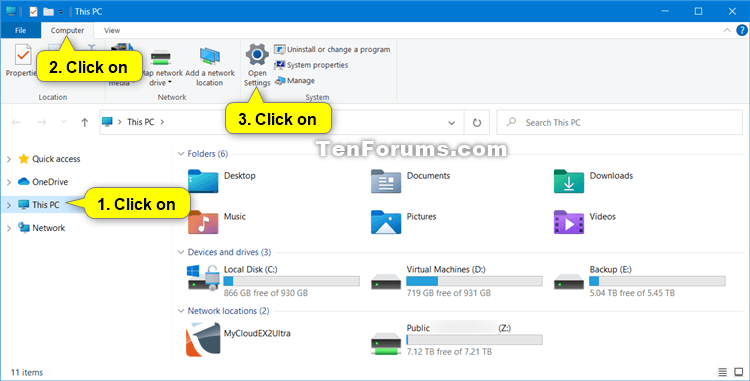
1 Open **File Explorer** (Win+E).
2 Click/tap on [**This PC**](https://www.tenforums.com/tutorials/3734-open-pc-quick-access-file-explorer-windows-10-a.html) in the navigation pane. (see screenshot below)
3 Click/tap on the **Computer** tab.
4 Click/tap on the **Open Settings** button in the [**ribbon**](https://www.tenforums.com/tutorials/42982-hide-show-file-explorer-ribbon-windows-10-a.html).
## Open Settings from Run
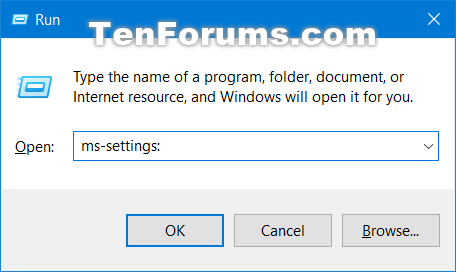
1 Open **Run** (Win+R).
2 Type `ms-settings:` into Run, and click/tap on **OK** or press Enter. (see screenshot below)
## Open Settings from Command Prompt
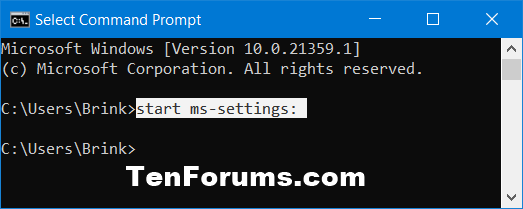
1 Open a [**command prompt**](https://www.tenforums.com/tutorials/3288-open-command-prompt-windows-10-a.html).
2 Copy and paste `start ms-settings:` into the command prompt, and press Enter. (see screenshot below)
## Open Settings from PowerShell
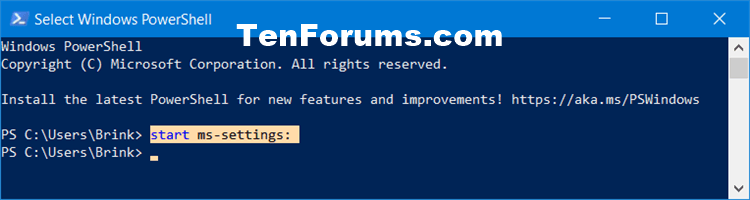
1 Open [**PowerShell**](https://www.tenforums.com/tutorials/25581-open-windows-powershell-windows-10-a.html).
2 Copy and paste `start ms-settings:` into PowerShell, and press Enter. (see screenshot below)
**That's it,**