# How to Open Windows PowerShell in Windows 10

Windows 10 comes with Windows PowerShell 5.0 included.  
  
Windows PowerShell is a task-based command-line shell and scripting language designed especially for system administration. Built on the .NET Framework, Windows PowerShell helps IT professionals and power users control and automate the administration of the Windows operating system and applications that run on Windows.

<div id="bkmrk-option-one"><div><div><span class="bbopt2">OPTION ONE</span></div></div></div>## Open Windows PowerShell from All apps in Start Menu

<div id="bkmrk-1%C2%A0open%C2%A0all-apps%C2%A0in-t">  
<span class="bbnum">1</span> Open [**All apps**](https://docs.gamma.tech/books/windows-how-to/page/how-to-open-and-use-all-apps-in-windows-10-start-menu "How to Open and Use All apps in Windows 10 Start menu") in the Start menu.  
  
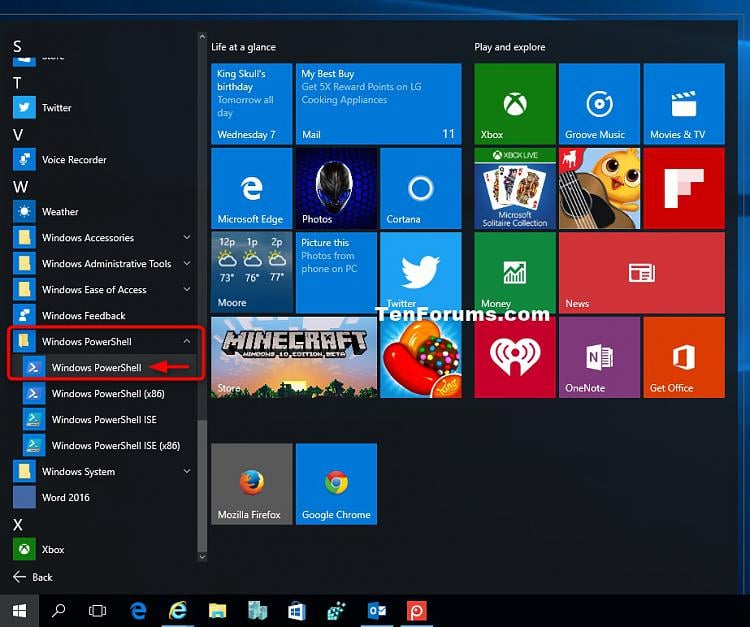
<span class="bbnum">2</span> Scroll down and expand open the **Windows PowerShell** folder, and click/tap on **Windows PowerShell**. (see screenshot below)  
  
[![Open Windows PowerShell in Windows 10-all_apps_powershell.jpg](https://www.tenforums.com/attachments/tutorials/41718d1485958009t-open-windows-powershell-windows-10-a-all_apps_powershell.jpg "Open Windows PowerShell in Windows 10-all_apps_powershell.jpg")](https://www.tenforums.com/attachments/tutorials/41718d1444317503-open-windows-powershell-windows-10-a-all_apps_powershell.jpg)</div><div id="bkmrk-option-two"><div><div><span class="bbopt2">OPTION TWO</span></div></div></div>## Open Windows PowerShell in Search
<div id="bkmrk-1%C2%A0press-the-%5Bkey%5Dwin">  
<span class="bbnum">1</span> Press the [key]Win[key] + S keys to open Search.  
  
<span class="bbnum">2</span> Type **powershell** into the search box, and click/tap on **Windows PowerShell** in the search results at the top. (see screenshot below)  
  
[![Open Windows PowerShell in Windows 10-search_powershell.png](https://www.tenforums.com/attachments/tutorials/41713d1485958009t-open-windows-powershell-windows-10-a-search_powershell.png "Open Windows PowerShell in Windows 10-search_powershell.png")](https://www.tenforums.com/attachments/tutorials/41713d1444317446-open-windows-powershell-windows-10-a-search_powershell.png)</div><div id="bkmrk-option-three"><div><div><span class="bbopt2">OPTION THREE</span></div></div></div>## Open Windows PowerShell from Run

<div id="bkmrk-1%C2%A0press-the%C2%A0win%C2%A0%2B%C2%A0r%C2%A0">  
<span class="bbnum">1</span> Press the Win + R keys to open Run.  
  
<span class="bbnum">2</span> Type **powershell**, and click/tap on **OK** in the search results at the top. (see screenshot below)  
  
![Open Windows PowerShell in Windows 10-run_powershell.png](https://www.tenforums.com/attachments/tutorials/41712d1485958009-open-windows-powershell-windows-10-a-run_powershell.png "Open Windows PowerShell in Windows 10-run_powershell.png")</div><div id="bkmrk-option-four"><div><div><span class="bbopt2">OPTION FOUR</span></div></div></div>## Open Windows PowerShell from Task Manager

<div id="bkmrk-1%C2%A0open%C2%A0task-manager%C2%A0">  
<span class="bbnum">1</span> Open [**Task Manager**](https://www.tenforums.com/tutorials/2938-open-task-manager-windows-10-a.html) (Ctrl+Shift+Esc).  
  
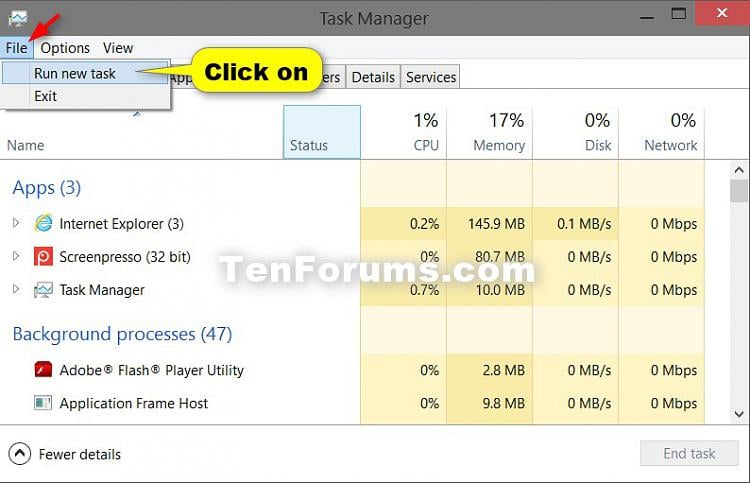
<span class="bbnum">2</span> Click/tap on **File** (menu bar), and click/tap on **Run new task**. (see screenshot below) <div>  
[![Open Windows PowerShell in Windows 10-task-manager_powershell-1.jpg](https://www.tenforums.com/attachments/tutorials/41714d1485949086t-open-windows-powershell-windows-10-a-task-manager_powershell-1.jpg "Open Windows PowerShell in Windows 10-task-manager_powershell-1.jpg")](https://www.tenforums.com/attachments/tutorials/41714d1444317462-open-windows-powershell-windows-10-a-task-manager_powershell-1.jpg)</div>  
<span class="bbnum">3</span> Type **powershell**, and click/tap on **OK** in the search results at the top. (see screenshot below) <div>  
![Open Windows PowerShell in Windows 10-task-manager_powershell-2.png](https://www.tenforums.com/attachments/tutorials/41715d1485958009-open-windows-powershell-windows-10-a-task-manager_powershell-2.png "Open Windows PowerShell in Windows 10-task-manager_powershell-2.png")</div></div><div id="bkmrk-option-five"><div><div><span class="bbopt2">OPTION FIVE</span></div></div></div>## Open Windows PowerShell from Win+X Menu

<div id="bkmrk-1%C2%A0if-you-have-the-wi">  
<span class="bbnum">1</span> If you have the Win+X menu set to [**show Windows PowerShell instead of Command Prompt**](https://www.tenforums.com/tutorials/22882-show-command-prompt-windows-powershell-win-x-menu-windows-10-a.html), then press the Win + X keys to open the Win+X menu.  
  
<span class="bbnum">2</span> Click/tap on **Windows PowerShell**. (see screenshot below)  
  
![Open Windows PowerShell in Windows 10-win-x_menu_powershell.png](https://www.tenforums.com/attachments/tutorials/41717d1485958009-open-windows-powershell-windows-10-a-win-x_menu_powershell.png "Open Windows PowerShell in Windows 10-win-x_menu_powershell.png")</div><div id="bkmrk-option-six"><div><div><span class="bbopt2">OPTION SIX</span></div></div></div>## To "Open Windows PowerShell Here" in File Explorer

<div id="bkmrk-1%C2%A0open-file-explorer">  
<span class="bbnum">1</span> Open File Explorer (Win+E).  
  
<span class="bbnum">2</span> Select or open a folder or drive that you want to open Windows PowerShell at that location. (see screenshot below)  
  
<span class="bbnum">3</span> Click/tap on the **File** tab on the ribbon, click/tap on **Open Windows PowerShell** to expand, and click/tap on **Open Windows PowerShell**. (see screenshot below)  
  
[![Open Windows PowerShell in Windows 10-open_powershell_here.png](https://www.tenforums.com/attachments/tutorials/41711d1485957978t-open-windows-powershell-windows-10-a-open_powershell_here.png "Open Windows PowerShell in Windows 10-open_powershell_here.png")](https://www.tenforums.com/attachments/tutorials/41711d1444317446-open-windows-powershell-windows-10-a-open_powershell_here.png)</div><div id="bkmrk-option-seven"><div><div><span class="bbopt2">OPTION SEVEN</span></div></div></div>## Open Windows PowerShell from File Explorer

<div id="bkmrk-1%C2%A0while-you-have-a-f">  
<span class="bbnum">1</span> While you have a folder or drive open in File Explorer (Win+E), type **PowerShell** into the address bar, and press Enter to open PowerShell in whatever folder or drive you have open.  
  
**<span style="font-size: large;">OR</span>**  
  
<span class="bbnum">2</span> Open File Explorer (Win+E), browse to the folder location below, and click/tap on the **<span class="skimlinks-unlinked">powershell.exe</span>** file to run it. (see screenshot below) <div>  
 **C:\\Windows\\System32\\WindowsPowerShell\\v1.0**</div>  
[![Open Windows PowerShell in Windows 10-file_explorer_powershell.png](https://www.tenforums.com/attachments/tutorials/41710d1485957978t-open-windows-powershell-windows-10-a-file_explorer_powershell.png "Open Windows PowerShell in Windows 10-file_explorer_powershell.png")](https://www.tenforums.com/attachments/tutorials/41710d1444317446-open-windows-powershell-windows-10-a-file_explorer_powershell.png)</div>  
  
That's it,