# How to Restart the Computer in Windows 10

Restart will close all apps, sign out all users, and full shutdown and restart (reboot) the PC.  
  
This tutorial will show you different ways on how to **restart** your local **Windows 10** PC.

<div id="bkmrk-option-one"><div><div><span class="bbopt2">OPTION ONE</span></div></div></div>## To Restart Computer from Start Menu

<div id="bkmrk-1%C2%A0open-the-start-men">  
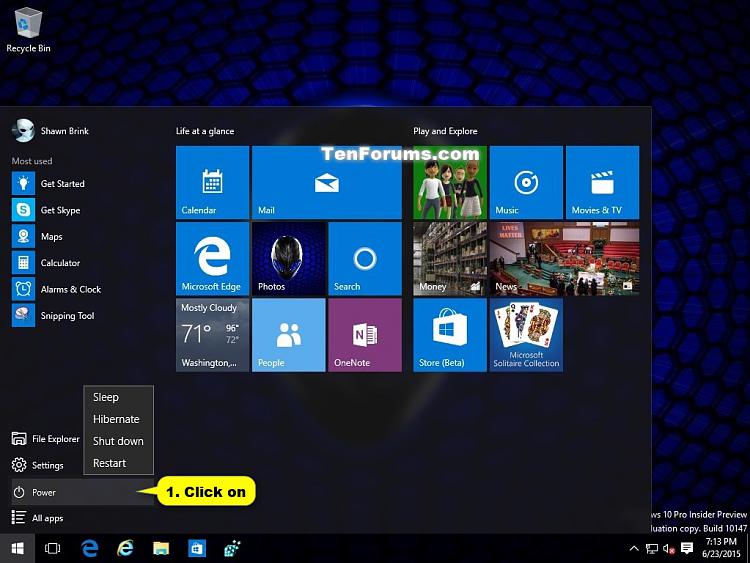
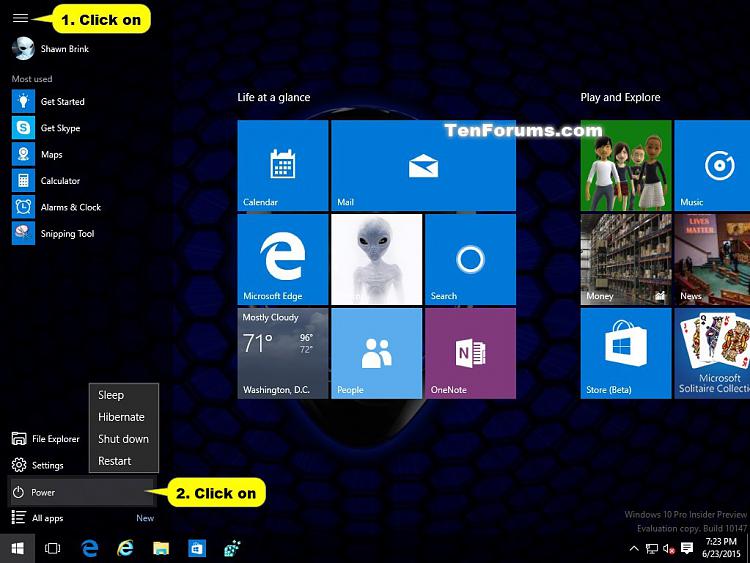
<span class="bbnum">1</span> Open the Start menu , click/tap on the ![Restart Computer in Windows 10-power.jpg](https://www.tenforums.com/attachments/tutorials/22320d1485952163-restart-computer-windows-10-a-power.jpg "Restart Computer in Windows 10-power.jpg") **Power** button, and click/tap on **Restart**. (see screenshots below)  
  
[![Restart Computer in Windows 10-start_menu.jpg](https://www.tenforums.com/attachments/tutorials/22321d1485952163t-restart-computer-windows-10-a-start_menu.jpg "Restart Computer in Windows 10-start_menu.jpg")](https://www.tenforums.com/attachments/tutorials/22321d1435153182-restart-computer-windows-10-a-start_menu.jpg) [![Restart Computer in Windows 10-full-screen_start_menu.jpg](https://www.tenforums.com/attachments/tutorials/22318d1485952163t-restart-computer-windows-10-a-full-screen_start_menu.jpg "Restart Computer in Windows 10-full-screen_start_menu.jpg")](https://www.tenforums.com/attachments/tutorials/22318d1435152903-restart-computer-windows-10-a-full-screen_start_menu.jpg)</div><div id="bkmrk-option-two"><div><div><span class="bbopt2">OPTION TWO</span></div></div></div>## To Restart Computer from Win+X Quick Link Menu
<div id="bkmrk-1%C2%A0open-the%C2%A0win%2Bx-qui">  
<span class="bbnum">1</span> Open the [**Win+X Quick Link menu**](https://docs.gamma.tech/books/windows-how-to/page/how-to-open-winx-quick-link-menu-in-windows-10 "How to Open Win+X Quick Link Menu in Windows 10"), click/tap on **Shut down or sign out**, and click/tap on **Restart**. (see screenshot below)  
  
<span style="color: #ff0000;">**OR**</span>  
  
<span class="bbnum">2</span> Press the Win + X keys, press U, and press R.  
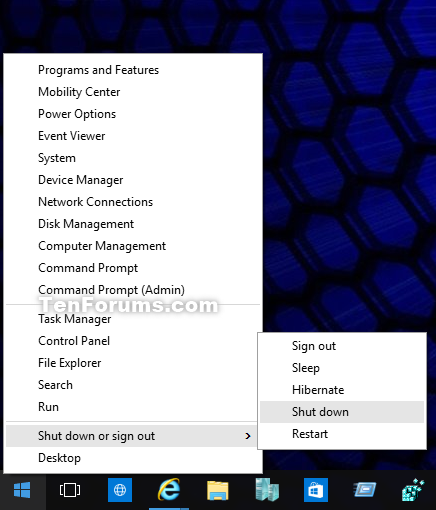
  
![Restart Computer in Windows 10-win-x.png](https://www.tenforums.com/attachments/tutorials/22322d1485952163-restart-computer-windows-10-a-win-x.png "Restart Computer in Windows 10-win-x.png")</div><div id="bkmrk-option-three"><div><div><span class="bbopt2">OPTION THREE</span></div></div></div>## To Restart Computer from Alt+F4 Shut Down Windows Dialog

<div id="bkmrk-1%C2%A0click%2Ftap-on-your-">  
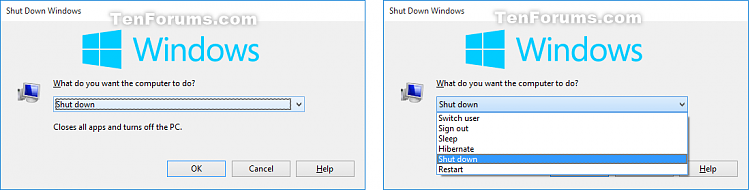
<span class="bbnum">1</span> Click/tap on your desktop to make it the current focused (active) window, and press the Alt + F4 keys.  
  
<span class="bbnum">2</span> Select **Restart** in the drop down menu, and click/tap on **OK** or press **Enter**. (see screenshots below)  
  
[![Restart Computer in Windows 10-alt-f4.png](https://www.tenforums.com/attachments/tutorials/22315d1485952163t-restart-computer-windows-10-a-alt-f4.png "Restart Computer in Windows 10-alt-f4.png")](https://www.tenforums.com/attachments/tutorials/22315d1435152903-restart-computer-windows-10-a-alt-f4.png)</div><div id="bkmrk-option-four"><div><div><span class="bbopt2">OPTION FOUR</span></div></div></div>## To Restart Computer from Ctrl+Alt+Del Screen
<div id="bkmrk-1%C2%A0press-the%C2%A0ctrl%C2%A0%2B%C2%A0a">  
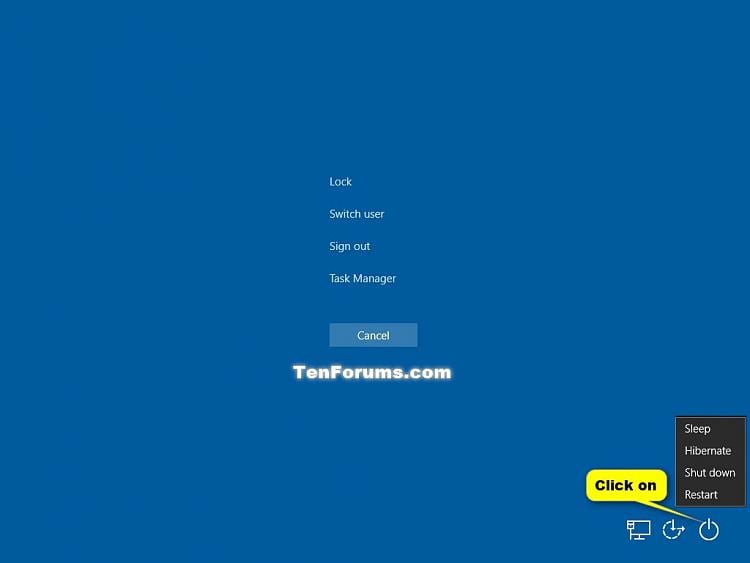
<span class="bbnum">1</span> Press the Ctrl + Alt + Del keys, click/tap on the ![Restart Computer in Windows 10-power.jpg](https://www.tenforums.com/attachments/tutorials/22320d1485952163-restart-computer-windows-10-a-power.jpg "Restart Computer in Windows 10-power.jpg") Power button, and click/tap on **Restart**. (see screenshot below)  
  
[![Restart Computer in Windows 10-ctrl-alt-del_power.jpg](https://www.tenforums.com/attachments/tutorials/22317d1485952163t-restart-computer-windows-10-a-ctrl-alt-del_power.jpg "Restart Computer in Windows 10-ctrl-alt-del_power.jpg")](https://www.tenforums.com/attachments/tutorials/22317d1435152903-restart-computer-windows-10-a-ctrl-alt-del_power.jpg)</div><div id="bkmrk-option-five"><div><div><span class="bbopt2">OPTION FIVE</span></div></div></div>## To Restart Computer from Sign-in Screen
<div id="bkmrk-2%C2%A0while-on-the-sign-">  
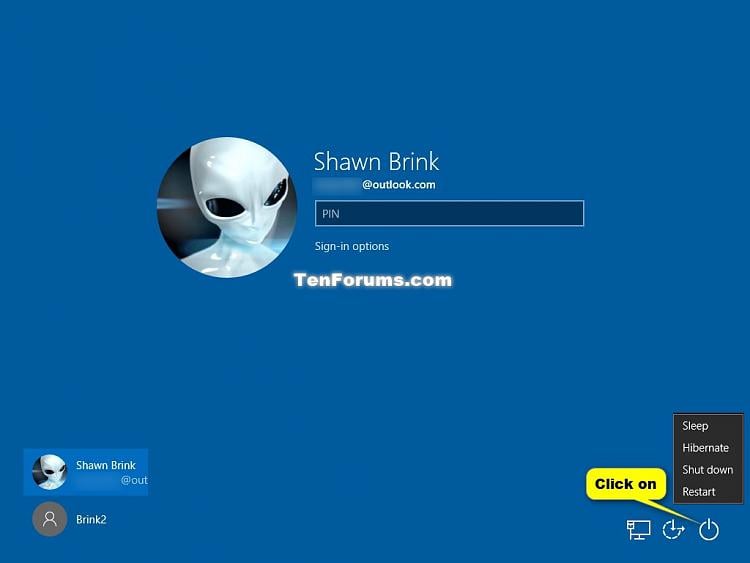
<span class="bbnum">2</span> While on the sign-in screen, click/tap on the ![Restart Computer in Windows 10-power.jpg](https://www.tenforums.com/attachments/tutorials/22320d1485952163-restart-computer-windows-10-a-power.jpg "Restart Computer in Windows 10-power.jpg") **Power** button, and click/tap on **Restart**. (see screenshot below)  
  
[![Restart Computer in Windows 10-sign-in_screen.jpg](https://www.tenforums.com/attachments/tutorials/22319d1485952163t-restart-computer-windows-10-a-sign-in_screen.jpg "Restart Computer in Windows 10-sign-in_screen.jpg")](https://www.tenforums.com/attachments/tutorials/22319d1435152903-restart-computer-windows-10-a-sign-in_screen.jpg)</div><div id="bkmrk-option-six"><div><div><span class="bbopt2">OPTION SIX</span></div></div></div>## To Restart Computer from Command Prompt
If you like, you can also run the commands below in the **Run** (Win+R) command dialog box.

<div id="bkmrk-1%C2%A0open-a%C2%A0command-pro"><div>  
<span class="bbnum">1</span> Open a [**command prompt**](https://www.tenforums.com/tutorials/3288-open-command-prompt-windows-10-a.html), type the command below you want to use, and press Enter.  
  
`shutdown /r`</div></div>Performs a full shutdown and restart the computer.

<div id="bkmrk-orshutdown-%2Fr-%2Ff-%2Ft-"><div>OR  
  
`shutdown /r /f /t 0`</div></div>Immediately force running applications to close, and then performs a full shutdown and restart the computer.

<div id="bkmrk-orshutdown-%2Fr-%2Ft-xxx"><div>OR  
  
`shutdown /r /t <span style="color: #ff0000;">xxx</span>`</div></div>Performs a full shutdown and restart the computer after a timeout period you specified in seconds.  
  
Substitute **<span style="color: #ff0000;">xxx</span>** in the command above with between **0-315360000** seconds you want for the timeout period. If the timeout period is greater than 0, the **/f** (force) parameter is implied.

<div id="bkmrk-orshutdown-%2Fr-%2Fc-%22yo"><div>OR  
  
`shutdown /r /c "<span style="color: #ff0000;">Your comment here</span>"`</div></div>Displays a warning with your comment, and performs a full shutdown and restart the computer.  
  
Substitute **<span style="color: #ff0000;">Your comment here</span>** in the command above with the comment you want up to 512 characters.  
![Restart Computer in Windows 10-comment.png](https://www.tenforums.com/attachments/tutorials/22316d1485952163-restart-computer-windows-10-a-comment.png "Restart Computer in Windows 10-comment.png")

<div id="bkmrk-orshutdown-%2Fr-%2Ft-xxx-0"><div>OR  
  
`shutdown /r /t <span style="color: #ff0000;">xxx</span> /c "<span style="color: #ff0000;">Your comment here</span>"`</div></div>Displays a warning notice with your comment, and performs a full shutdown and restart the computer after a timeout period you specified in seconds.  
  
Substitute **<span style="color: #ff0000;">Your comment here</span>** in the command above with the comment you want up to 512 characters.  
  
Substitute **<span style="color: #ff0000;">xxx</span>** in the command above with between **0-315360000** seconds you want for the timeout period. If the timeout period is greater than 0, the **/f** (force) parameter is implied.  
![Restart Computer in Windows 10-comment.png](https://www.tenforums.com/attachments/tutorials/22316d1485952163-restart-computer-windows-10-a-comment.png "Restart Computer in Windows 10-comment.png")

<div id="bkmrk-orshutdown-%2Fg"><div>OR  
  
`shutdown /g`</div></div>Performs a full shutdown and restart the computer. Will restart any applications that were open when you restarted after the system is rebooted and you sign in.

<div id="bkmrk-orshutdown-%2Fg-%2Fc-%22yo"><div>OR  
  
`shutdown /g /c "<span style="color: #ff0000;">Your comment here</span>"`</div></div>Displays a warning with your comment, and performs a full shutdown and restart the computer. Will restart any applications that were open when you restarted after the system is rebooted and you sign in.  
  
Substitute **<span style="color: #ff0000;">Your comment here</span>** in the command above with the comment you want up to 512 characters.  
![Restart Computer in Windows 10-comment.png](https://www.tenforums.com/attachments/tutorials/22316d1485952163-restart-computer-windows-10-a-comment.png "Restart Computer in Windows 10-comment.png")

<div id="bkmrk-orshutdown-%2Fg-%2Ft-xxx"><div>OR  
  
`shutdown /g /t <span style="color: #ff0000;">xxx</span> /c "<span style="color: #ff0000;">Your comment here</span>"`</div></div>Displays a warning notice with your comment, and performs a full shutdown and restart the computer after a timeout period you specified in seconds. Will restart any applications that were open when you restarted after the system is rebooted and you sign in.  
  
Substitute **<span style="color: #ff0000;">Your comment here</span>** in the command above with the comment you want up to 512 characters.  
  
Substitute **<span style="color: #ff0000;">xxx</span>** in the command above with between **0-315360000** seconds you want for the timeout period. If the timeout period is greater than 0, the **/f** (force) parameter is implied.  
![Restart Computer in Windows 10-comment.png](https://www.tenforums.com/attachments/tutorials/22316d1485952163-restart-computer-windows-10-a-comment.png "Restart Computer in Windows 10-comment.png")

<div id="bkmrk-option-seven"><div><div><span class="bbopt2">OPTION SEVEN</span></div></div></div>## To Restart Computer from PowerShell

To see all **Restart-Computer** options in Windows PowerShell 5.0, see: [**Restart-Computer**](https://docs.microsoft.com/en-us/powershell/module/Microsoft.PowerShell.Management/Restart-Computer)

<div id="bkmrk-1%C2%A0open%C2%A0windows-power"><div>  
<span class="bbnum">1</span> Open [**Windows PowerShell**](https://docs.gamma.tech/books/windows-how-to/page/how-to-open-windows-powershell-in-windows-10 "How to Open Windows PowerShell in Windows 10"), type the command below you want to use, and press Enter.  
  
`restart-computer`</div></div>Performs a full shutdown and restart the computer.

<div id="bkmrk-orrestart-computer--"><div>OR  
  
`restart-computer -force`</div></div>Forces running applications to close, and then performs a full shutdown and restart the computer.

<div id="bkmrk-orrestart-computer---0"><div>OR  
  
`restart-computer -confirm`</div></div>Prompts you to confirm before performing a full shutdown and restart the computer.  
[![Restart Computer in Windows 10-powershell_confirm.png](https://www.tenforums.com/attachments/tutorials/22328d1485952163t-restart-computer-windows-10-a-powershell_confirm.png "Restart Computer in Windows 10-powershell_confirm.png")](https://www.tenforums.com/attachments/tutorials/22328d1435159673-restart-computer-windows-10-a-powershell_confirm.png)

<div id="bkmrk-orrestart-computer---1"><div>OR  
  
`restart-computer -force -confirm`</div></div>Prompts you to confirm before forces running applications to close, and then performs a full shutdown and restart the computer.  
[![Restart Computer in Windows 10-powershell_confirm.png](https://www.tenforums.com/attachments/tutorials/22328d1485952163t-restart-computer-windows-10-a-powershell_confirm.png "Restart Computer in Windows 10-powershell_confirm.png")](https://www.tenforums.com/attachments/tutorials/22328d1435159673-restart-computer-windows-10-a-powershell_confirm.png)

<div id="bkmrk-option-eight"><div><div><span class="bbopt2">OPTION EIGHT</span></div></div></div>## To Perform an Emergency Restart in Windows 10

In some situations you may have to shut down and restart Windows very quickly. This would be an emergency restart. An emergency restart is basically just a forced restart without a timeout. (ex: `shutdown.exe -R -T 00 -F​`)  
  
An emergency restart can be helpful in circumstances when you cannot normally restart your computer, and is much better than turning off the power to your computer by performing a hard restart (reboot) which can be harmful to the computer.

<div id="bkmrk-1%C2%A0press-the%C2%A0ctrl%C2%A0%2B%C2%A0a-0">  
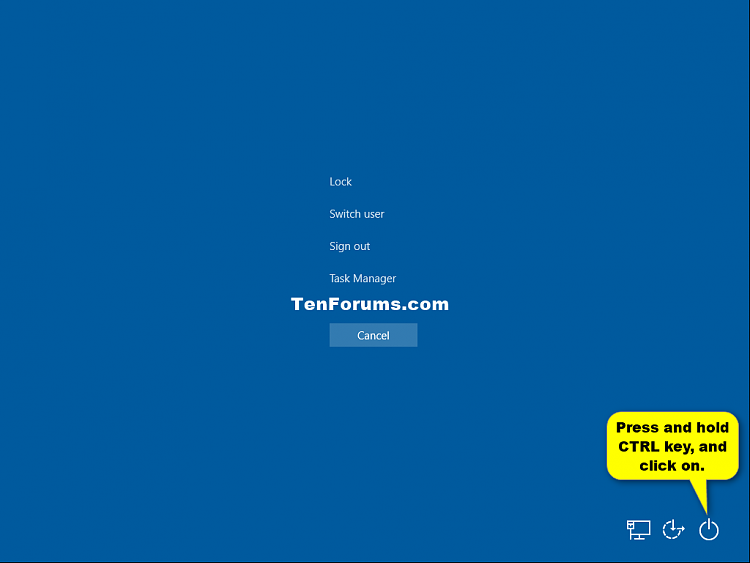
<span class="bbnum">1</span> Press the Ctrl + Alt + Delete keys.  
  
<span class="bbnum">2</span> Press and hold the Ctrl key, click/tap on the **Power** button, and release the Ctrl key. (see screenshot below) <div>  
[![Restart Computer in Windows 10-emergency_restart-1.png](https://www.tenforums.com/attachments/tutorials/68167d1485964084t-restart-computer-windows-10-a-emergency_restart-1.png "Restart Computer in Windows 10-emergency_restart-1.png")](https://www.tenforums.com/attachments/tutorials/68167d1457373165-restart-computer-windows-10-a-emergency_restart-1.png)</div>  
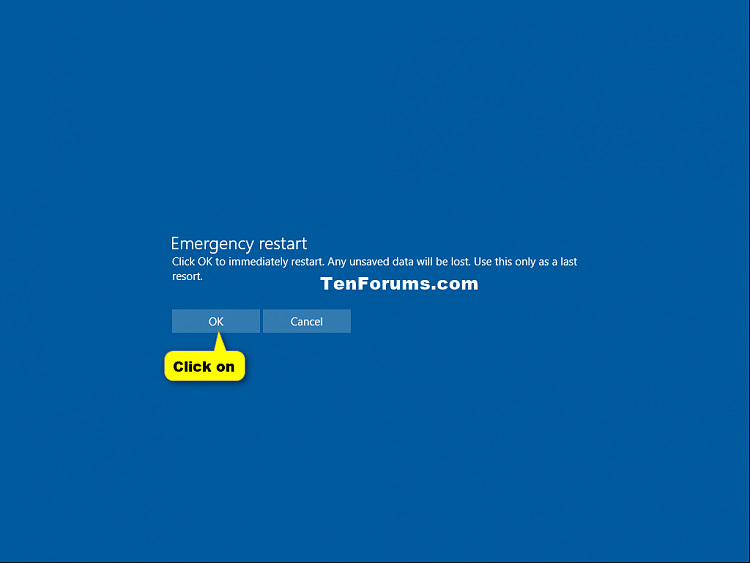
<span class="bbnum">3</span> Click/tap on **OK** to restart the computer. (see screenshot below) <div>  
[![Restart Computer in Windows 10-emergency_restart-2.png](https://www.tenforums.com/attachments/tutorials/68168d1485964084t-restart-computer-windows-10-a-emergency_restart-2.png "Restart Computer in Windows 10-emergency_restart-2.png")](https://www.tenforums.com/attachments/tutorials/68168d1457373165-restart-computer-windows-10-a-emergency_restart-2.png)</div></div><div id="bkmrk-option-nine"><div><div><span class="bbopt2">OPTION NINE</span></div></div></div>## To Restart Computer using Cortana Voice Command

Starting with [**Windows 10 build 16251**](https://www.tenforums.com/windows-10-news/89896-announcing-windows-10-insider-preview-build-16251-pc-15235-mobile.html), you can now use a [**Hey Cortana**](https://www.tenforums.com/tutorials/18418-turn-off-hey-cortana-windows-10-a.html) voice command to restart the computer.  
  
In addition, you can also ask Cortana to execute this command on the Lock screen, but first you should [**enable Cortana on the Lock screen**](https://www.tenforums.com/tutorials/46494-enable-disable-cortana-lock-screen-windows-10-a.html) if you have not done so already.

<div id="bkmrk-1%C2%A0using%C2%A0hey-cortana%2C">  
<span class="bbnum">1</span> Using [**Hey Cortana**](https://www.tenforums.com/tutorials/18418-turn-off-hey-cortana-windows-10-a.html), use the voice command below. <div>  
 **"Hey Cortana, restart my computer."**</div>  
<span class="bbnum">2</span> Cortana may ask you for a verbal confirmation. You’ll have to respond to Cortana with a **"Yes"** for Cortana to complete the voice command.</div>  
  
That's it,