# How to Unpair a Bluetooth Device on Windows 10 PC
[**Bluetooth**](https://en.wikipedia.org/wiki/Bluetooth) is a short range wireless technology which enables wireless data transmission between two Bluetooth–enabled devices located nearby each other.
If one Bluetooth–enabled (turned on) device is in discovery mode and discovers another Bluetooth–enabled device nearby, it can query for its services and choose to establish a Bluetooth link, or a 'pairing relationship', with the other Bluetooth–enabled device. Establishing a Bluetooth link with another Bluetooth–enabled device is also known as pairing.
Wireless devices with Bluetooth radios must be paired with each other before they can communicate.
Once the two devices have been paired, they will automatically connect to each other when they are within range and have Bluetooth turned on.
This tutorial will show you how to remove a paired **Bluetooth** device on your **Windows 10** PC.
**Here's How:**
**1.** Open [**Settings**](https://www.tenforums.com/tutorials/3326-settings-open-windows-10-a.html), and click/tap on the **Devices** icon.
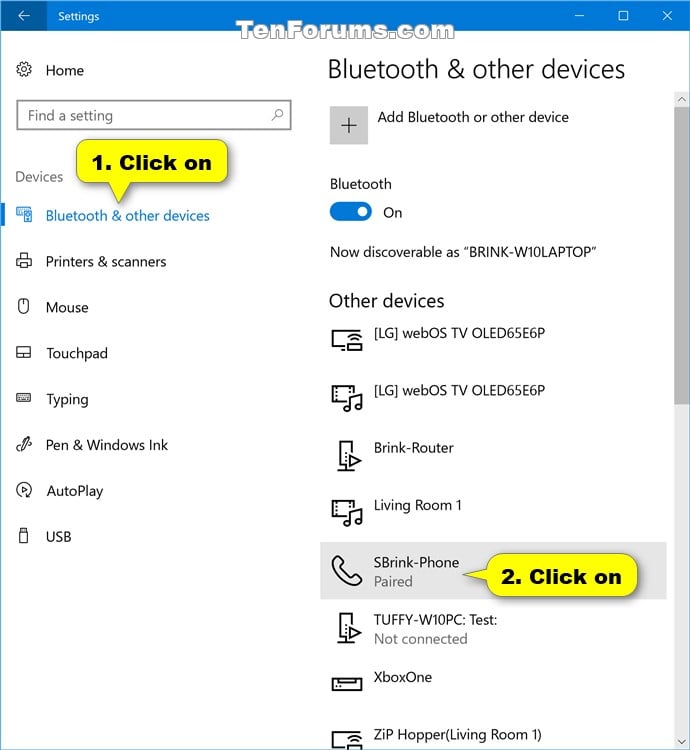
**2.** Click/tap on **Bluetooth & other devices** on the left side, and click/tap on the [**paired Bluetooth device**](https://www.tenforums.com/tutorials/78067-bluetooth-pair-windows-10-mobile-phone-windows-10-pc.html) (ex" "SBrink-Phone") you want to remove on the right side. (see screenshot below)
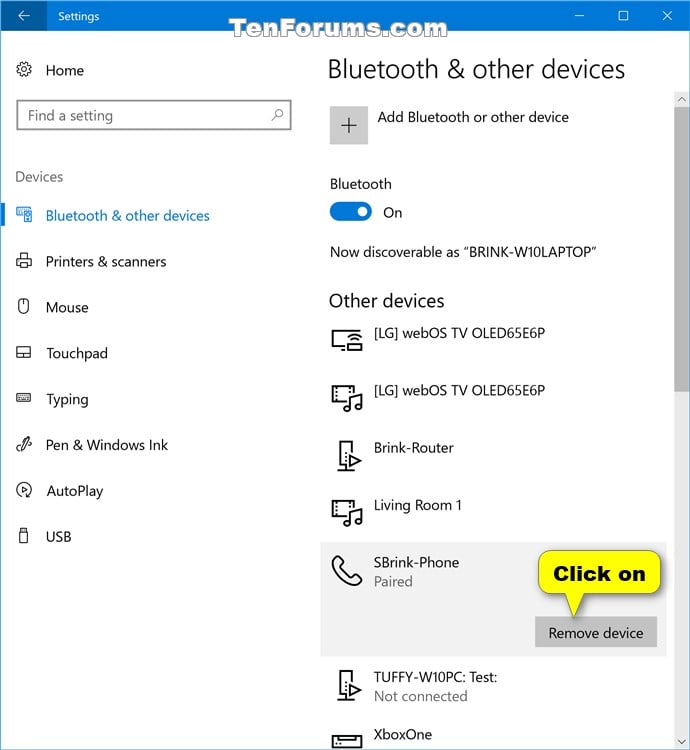
**3.** Click/tap on the **Remove device** button. (see screenshot below)
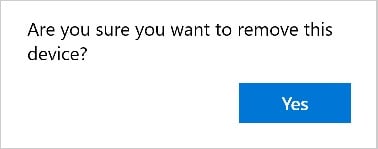
**4.** Click/tap on **Yes** to confirm. (see screenshot below)
That's it,